
Download Timbuktu Pro – Secure Remote Control for Mac
Overview
Timbuktu Pro has long been regarded as the benchmark for remote‑desktop control on Mac OS X. First released in the early 2000s, the 8.5 version still packs a solid set of tools that let users view, control, and transfer files between a Mac and virtually any other computer on the same network or over the internet. The software falls under the “Internet software” category with a subcategory of “Remote Control,” making it a go‑to choice for IT administrators, designers, and home users who need a reliable, low‑latency connection to a distant Mac.
While the last official update was posted on 21 February 2006, the program remains popular in regions such as India, Turkey, and Sweden, where it has accumulated over 5,600 downloads since its catalog entry. The trial version offers a risk‑free way to test the full feature set before purchasing a license, and the English‑only interface keeps the learning curve shallow for non‑technical users. Whether you need to troubleshoot a colleague’s Mac, present a live demo from a remote office, or simply access files from your home machine while traveling, Timbuktu Pro delivers a secure, encrypted tunnel that respects privacy and complies with most corporate security policies.
Key Features and What They Mean for You
- High‑Performance Screen Sharing – Real‑time video with adjustable quality settings ensures smooth visuals even on slower broadband connections.
- Full Keyboard and Mouse Control – Seamlessly operate the remote Mac as if you were sitting right in front of it, including support for special function keys.
- Secure Encrypted Sessions – Uses 128‑bit Blowfish encryption to protect data during transmission, meeting most corporate security standards.
- File Transfer Capability – Drag‑and‑drop files between local and remote machines without needing a separate FTP client.
- Multi‑Monitor Support – View and control each monitor on a multi‑display Mac, making it ideal for designers and developers.
- Chat Window – Built‑in text chat lets you communicate with the remote user while troubleshooting.
- Cross‑Platform Compatibility – While the primary client runs on Mac OS X, the server component can be installed on Windows machines, enabling mixed‑environment control.
- Customizable Access Permissions – Define which users can view, control, or transfer files, giving administrators granular control.
Each of these features is designed to reduce friction in day‑to‑day remote work. For example, the adjustable screen‑sharing quality means you can prioritize speed over resolution when you’re on a mobile hotspot, while still having the option to switch to full‑HD when you’re on a wired network. The built‑in chat eliminates the need to open a separate messaging app, keeping the support session focused. Moreover, the encrypted tunnel not only protects sensitive corporate data but also gives peace of mind to individual users who might be accessing personal files from a public Wi‑Fi hotspot. In practice, these capabilities translate into fewer dropped connections, quicker problem resolution, and a smoother collaborative experience across continents.
Installation, Setup, and Everyday Usage
Downloading and Installing Timbuktu Pro
To begin, visit the official Timbuktu Pro download page and click the “Download Free Trial” button. The installer is a compact .dmg file—typically under 30 MB—so it won’t consume much hard‑drive space. After the download completes, double‑click the .dmg and drag the Timbuktu Pro icon into your Applications folder. macOS may prompt you to confirm that you want to open an app from an identified developer; click “Open” to proceed. The first launch will trigger a short wizard that asks you to create an admin password for the remote server component. This password is required for any incoming connection, so choose a strong, unique phrase.
Configuring the Server and Client
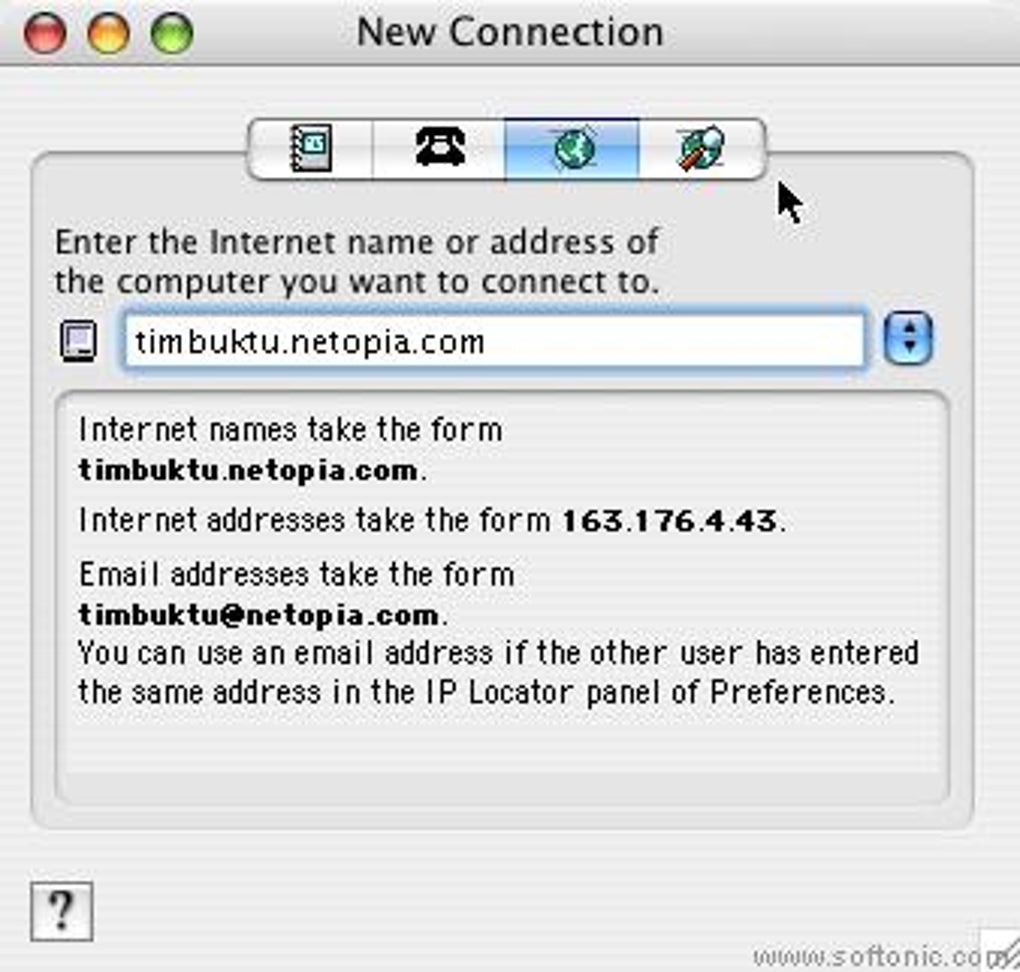
Once installed, open the “Timbuktu Server” from the menu bar. Here you can enable or disable remote access, set port numbers (the default is 4070), and specify which network interfaces to listen on (e.g., Wi‑Fi, Ethernet). For maximum security, it’s advisable to keep the default port unless your firewall requires a custom setting. The client side—used on the controlling Mac—opens a window where you type the IP address or hostname of the remote machine, then enter the password you set earlier. A successful handshake will display the remote desktop in a new window.
Everyday Workflow Tips
After the initial connection, you can save the remote machine to a “Favorites” list for one‑click access in future sessions. The toolbar at the top of the remote window includes shortcuts for toggling full‑screen mode, adjusting image quality, and initiating a file‑transfer session. To transfer files, simply open the “File Transfer” pane, drag the desired files from your local pane to the remote pane (or vice‑versa), and click “Send.” For power users, Timbuktu Pro supports AppleScript integration, allowing you to automate repetitive tasks such as launching a specific application on the remote Mac as soon as the connection is established.
Because the software was last updated in 2006, it does not include automatic update checks. However, the trial version will notify you when a newer licensed version is available, prompting a manual download from the vendor’s website. Users who require the very latest security patches may need to consider alternative solutions, but for many organizations the existing encryption and feature set remain sufficient.
Compatibility, Pros & Cons, and Frequently Asked Questions
Supported Operating Systems
Timbuktu Pro’s client runs on Mac OS X 10.3 (Panther) through macOS 10.15 (Catalina). Although the last official update predates macOS Big Sur, the application continues to launch on newer versions thanks to macOS’s backward‑compatibility layer. The server component can be installed on Windows XP, Vista, and 7, enabling cross‑platform remote sessions. Mobile platforms (iOS, Android) are not supported, so the tool is best suited for desktop‑to‑desktop use cases.
Pros
- Low bandwidth consumption with adjustable image quality.
- Strong 128‑bit encryption ensures secure data transfer.
- Intuitive UI makes remote control accessible for non‑technical users.
- Built‑in file transfer eliminates the need for third‑party tools.
- Multi‑monitor support is rare in legacy remote‑desktop applications.
Cons
- No native support for iOS or Android devices.
- Last official update was in 2006, which may raise compatibility concerns on the latest macOS releases.
- English‑only interface limits accessibility for non‑English speakers.
- License is not free; a perpetual license must be purchased after the trial expires.
- Limited integration with modern authentication methods (e.g., SSO, MFA).
FAQ – Your Questions Answered
Is Timbuktu Pro still safe to use despite its last update being in 2006?
The software uses 128‑bit Blowfish encryption, which remains acceptable for most non‑governmental environments. However, because there have been no recent security patches, organizations with strict compliance requirements should evaluate newer alternatives that support modern cipher suites and regular updates.
Can I control a Windows PC from my Mac using Timbuktu Pro?
Yes. The server component can be installed on Windows XP, Vista, and 7. Once the server is running, the Mac client can connect, share the screen, and transfer files just like it does with another Mac.
What is the price of a full license after the trial period?
A perpetual license costs US $79.95, which includes one year of technical support and updates. Additional seats can be purchased at a discounted bulk rate.
Does Timbuktu Pro support multiple simultaneous remote sessions?
The standard license allows a single active session per remote machine. For environments that require concurrent connections, the enterprise edition (available on request) offers multi‑session capabilities.
How do I secure my connection behind a firewall?
Configure your router or firewall to forward the Timbuktu Pro port (default 4070) to the Mac running the server. For added security, change the default port to a non‑standard number and use a strong, unique password for each remote user.
Conclusion – Should You Download Timbuktu Pro?
Timbuktu Pro remains a solid, low‑cost solution for anyone who needs reliable remote desktop access between Macs or from a Mac to a Windows PC. Its strengths lie in its straightforward UI, built‑in file transfer, and stable performance on modest network connections. While the lack of recent updates and mobile support may be a drawback for cutting‑edge enterprises, the software’s proven stability and encrypted sessions make it a viable choice for small businesses, educational institutions, and power users who value simplicity over flash.
If you’re looking for a free trial that lets you test every feature before committing, click the download button below. Once you’ve experienced the speed and security of Timbuktu Pro, the full license unlocks unlimited remote sessions and a year of priority support. Don’t let outdated myths keep you from a tool that still delivers on its promise: secure, seamless remote control on macOS.







